
Intraoral Scanner Quirks:
Five Failure Modes
Every Assistant Should Know
Master optical registration, moisture control, calibration protocols, file integrity checks, and arch-specific accuracy limits to eliminate scanner rework and maintain reliable digital impressions in your practice.
TL;DR Intraoral scanner failures stem from five key failure modes: optical registration loss, moisture contamination, software calibration drift, file corruption, and arch-specific accuracy variance. Understanding each failure mode—and its clinical prevention strategy—enables assistants to maintain scan quality and reduce chairside delays in orthodontic practices.
Intraoral scanner troubleshooting remains a persistent challenge in contemporary digital orthodontic workflows. This evidence-based guide addresses the five most common failure modes that assistants encounter, with practical recovery protocols drawn from clinical experience and published accuracy studies. Whether you're managing scan registration errors or diagnosing file integrity issues, understanding these failure modes—and their prevention—is essential for maintaining reliable digital impressions in your MARPE and comprehensive case planning.
Optical Registration Loss:
The Most Common Failure
and How to Recover
Optical registration loss occurs when the scanner's real-time 3D tracking system fails to maintain spatial continuity during arch capture. The scanner generates point clouds from infrared or structured light, and these must continuously register against the previous frame. When registration drops—often signaled by visible freezing, sudden jumps in the reconstruction, or a notification of “stitching failure”—the resulting STL file contains gaps, overlaps, or distorted geometry in the affected region.
This failure mode correlates directly with inadequate visibility of the buccal and lingual tooth surfaces and vestibular anatomy. A systematic review examining accuracy of intraoral scanners for complete-arch scanning reported that scanning technique, operator experience, and patient anatomy all influence successful continuous registration. Assistants who scan too quickly through interproximal areas, fail to adequately retract soft tissue, or work in areas with heavy plaque or remnant saliva create registration gaps.
Prevention strategy: Perform a two-pass technique—initial slow overview pass to establish reference geometry, then detailed second pass through each quadrant. Ensure retraction is adequate (use gauze, not just air). Dry thoroughly between buccal and lingual passes. If registration loss occurs mid-scan, pause immediately, allow the software to settle (5–10 seconds), then restart the affected region from a clearly visible landmark tooth. Do not attempt to “stitch” across a gap by rescanning; this introduces artifacts. Instead, rescan the entire arch or that quadrant cleanly.
Moisture Contamination:
Silent Data Killer
on Tooth and Optics
Moisture contamination manifests in two forms: optical surface fouling (water droplets, saliva, or condensation on the scanner's lens) and wet tooth surfaces during capture (saliva reflection, bleeding gingiva, or moisture-laden air).
When the scanner's optical window is contaminated, the light source cannot emit a clean signal, resulting in black voids, pixelated regions, or entire quadrants failing to capture. When tooth surfaces retain moisture during scanning, the infrared or structured-light pattern scatters, producing noisy point clouds with poor definition of interproximal contacts and incisal edges. Patients who cannot hold their mouth open consistently or have high salivary flow create persistent moisture challenges.
Clinical observation: Many assistants underestimate the impact of a single water droplet on the scanner tip. In a clinical setting, Dr. Mark Radzhabov emphasizes that 40–50% of rescan requests stem from moisture-related optical dropout rather than operator tracking errors. Wipe the scanner optics every 3–4 scans with a dry, lint-free cloth. Use dry gauze positioned in the vestibule during scanning to absorb saliva actively. For patients with high salivary flow, position a saliva ejector and retract the cheek and tongue simultaneously. If you observe black streaks, pixelation, or voids in real-time, stop immediately, dry the tooth surfaces and scanner optics, and rescan that region.
Prevention protocol: (1) Dry scanner optics before each patient. (2) Apply moisture-absorbing gauze in both buccal and lingual vestibules 15–20 seconds before scanning. (3) Use low-pressure air only; avoid high-velocity air that creates mist. (4) Scan quickly once tissue is dry—saliva reaccumulation begins within 30 seconds. (5) If a quadrant shows voids, dry immediately and rescan rather than accepting a compromised file.
Software Calibration Drift:
Why Scans Drift Over Time
and What It Means for Accuracy
Software calibration drift occurs when the scanner's internal reference geometry—the optical parameters that translate 2D camera images into 3D coordinates—gradually shifts from its factory baseline. This drift is typically subtle and cumulative, affecting measurement trueness (overall accuracy relative to a true reference) rather than precision (reproducibility). A scan may appear visually complete and well-stitched, yet exhibit systematic errors of 0.2–0.5 mm in specific regions, particularly in the posterior teeth and palate.
Drift is accelerated by thermal fluctuations (scanning in warm environments or after the scanner has been running continuously), physical handling (dropping, rough transportation, or repeated sterilization cycles if the scanner is autoclavable), and software updates that alter the internal calibration matrix without explicit notification. Orthodontists relying on scans for miniscrew-assisted expansion planning, interproximal space calculations, or appliance design depend on high trueness; even 0.3 mm of systematic error can affect anchorage dosage or MSE screw positioning.
Diagnostic test: Most modern scanners allow you to capture a calibration reference object (typically a checkered or patterned surface provided by the manufacturer). If you suspect drift, perform this reference scan and compare the resulting file size, point cloud density, and dimensional output to previous calibration files. Visible degradation signals that calibration has drifted. If drift is confirmed, contact the scanner manufacturer for recalibration. Do not assume the scanner will “self-correct”—this does not occur in clinical software.
Prevention: (1) Store the scanner at controlled room temperature (18–24 °C). (2) Perform the manufacturer's recommended calibration check monthly or after any environmental change. (3) If the practice has multiple scanners, designate one as a “reference scanner” for critical cases (MARPE planning, implant-supported appliances, complex extractions). (4) Document calibration dates and file any calibration reports. (5) After any major software update, rescan a known case and visually compare to the previous STL to ensure calibration integrity.
File Corruption and Data Loss:
How to Prevent and Recover
from Workflow Interruption
File corruption manifests as incomplete STL exports, unreadable mesh geometry, or software crashes during file transfer. This occurs when: (1) the scan is interrupted mid-export (power loss, network drop, accidental software close), (2) the storage drive is full, (3) the USB port or SD card is faulty, or (4) the software encounters an unexpected file format conflict. In each case, the result is identical: the STL file is either truncated, contains null pointers in the mesh, or fails to import into design software.
Prevention begins with robust file management discipline. Establish a protocol: after every scan, immediately initiate a “Save” and “Export STL” operation while the scan is still in RAM. Do not wait until the end of the clinical day. Assign one team member as the file manager, responsible for creating a backup folder structure with daily timestamps. Use cloud-based backup (HIPAA-compliant storage such as encrypted Dropbox, OneDrive for Business, or practice-specific PACS systems) to mirror every exported STL within 5 minutes of creation. Local hard drives fail; cloud backup is non-negotiable for workflow continuity.
Real-time protection: (1) Enable auto-save in the scanner software (check manufacturer settings; not all enable this by default). (2) Use a high-quality, manufacturer-approved USB cable or wireless connection—many file corruptions stem from intermittent USB connectivity. (3) Keep the scanner's local storage at <80% capacity; full storage drives trigger export failures. (4) Train all operators to never force-close the software; use the proper "Export → Finish" sequence.
Recovery if corruption occurs: Most scanner software maintains a temporary file cache. Before rescanning, check the scanner's temporary files folder (often in AppData or Documents) for a recent point-cloud backup. If a backup exists, attempt to re-export it as a new STL. If no backup is available, rescan the patient. Document the incident (date, time, suspected cause) to identify patterns. If corruptions are frequent, contact the manufacturer's technical support—this may signal a hardware defect in the USB port, drive, or network interface.
Arch-Specific Accuracy Variance:
When Scans Fail in Specific Regions
and How to Compensate
Different arch types—dentate (full eruption), edentulous, and partially edentulous with implants—present different scanning challenges. A network meta-analysis comparing intraoral scanner accuracy across 26 scanner models and four arch subgroups found that complete-arch scanning accuracy is significantly different for partially edentulous arches with implants, while dentate and fully edentulous arches showed consistent accuracy across multiple scanner models. Posterior regions—second molars and distal-most teeth—are systematically harder to capture due to limited visibility, patient gag reflex, and the difficulty of maintaining proper scanner angle in the distal aspect.
When scanning anterior-dominant cases (Class II div 1 with deep bite, or severe crowding limited to the maxillary anterior), many assistants achieve excellent scans. However, in mixed or posterior-heavy cases—particularly those requiring comprehensive banding or where implant-supported orthopedic devices are planned—the distal second molar and palatal vault often show reduced point-cloud density and less detailed interproximal anatomy. This is not a failure of the scanner hardware; rather, it reflects the geometry of the oral cavity and optical line-of-sight constraints.
Clinical response: For cases where posterior precision is critical (implant analogs, complex extractions, MSE placement planning), use a two-scanner strategy or request a supplementary alginate impression of the posterior arch. A direct comparison study using the CEREC Omnicam scanner demonstrated that digital scanning is accurate for pediatric arch capture overall, but chairside time and model fabrication efficiency vary by arch region. Dr. Mark Radzhabov's clinical approach incorporates secondary validation: if a posterior region shows reduced detail (visually apparent low point density, soft interproximal contacts), he requests either a rescanned posterior-only quadrant with modified patient positioning (head back, mouth wide, assistant retracting from the opposite side) or a conventional alginate of that quadrant alone, then merges the data. This hybrid approach ensures high accuracy in regions critical to appliance design without sacrificing the speed of digital capture in anterior zones.
Practical protocol: (1) After completing a full-arch scan, visually inspect the posterior regions in the software preview. If point density is visibly lower, perform a second-pass posterior rescan before exiting the patient. (2) Position the scanner at 45° to the occlusal plane (not perpendicular) to optimize posterior tooth visibility. (3) For edentulous or partially edentulous cases, document baseline ridge anatomy with alginate or a dedicated ridge-anatomy scan, as optical reflection from bare ridge bone is lower than from tooth structure. (4) In mixed-arch cases, confirm that palatal anatomy is adequately captured—this is essential for MARPE planning, where screw position accuracy depends on palatal vault depth and contour.
Five Steps to Reliable
Intraoral Scanning
in Daily Practice
Transform scanner reliability by implementing a standardized pre-scan checklist and post-scan validation routine. Pre-scan: (1) Verify scanner optics are dry and clean (wipe with lint-free cloth). (2) Confirm software is fully loaded and patient record is open in the design portal. (3) Check local storage capacity (ensure >20% free space). (4) Test wireless or USB connection by performing a short 3–5 second “test scan” of your gloved finger—this confirms connectivity without wasting patient time. (5) Review the patient's previous scans (if available) to identify arch type and any known challenging regions (posterior crowding, anterior spacing, palatal anatomy).
During scan: (1) Position soft-tissue retraction (gauze, cheek retractors) before starting. (2) Dry all tooth surfaces and vestibules with low-pressure air. (3) Use a slow, overlapping scanning pattern—do not rush. (4) Pause every 3–4 teeth to allow the software to register new geometry. (5) If you see any freezing, black streaks, or pixelation, stop immediately, dry, and rescan that section.
Post-scan validation: (1) Visually inspect the STL in the software—confirm all tooth surfaces, contacts, and palatal anatomy are present. (2) Perform a “fit assessment”: use the software's measurement tools to verify that key landmarks (mesiobuccal cusps, palatal vault) are present. (3) Export the STL immediately (do not batch-export multiple scans at day's end). (4) Create a timestamped backup in cloud storage within 5 minutes. (5) Confirm the exported file size matches expected size for that arch type—a suspiciously small file (20–50 MB when typical is 80–150 MB) may indicate a truncated or corrupted scan.
Dr. Mark Radzhabov's teams employ this five-step protocol and report a 75–80% reduction in rescan requests within 4 weeks of implementation. The time investment in pre-scan preparation and post-scan validation is recouped in reduced rework, faster lab turnaround, and improved clinician confidence in digital planning data.
Free Clinical Guide
Which Expansion Appliance at Which Age?
Get Dr. Mark Radzhabov's guide to skeletal-expansion appliances — indications, pros & cons, and how to choose by patient age. Free to your inbox.
Prefer video? Watch the free demo lesson on MARPE appliance types, features and trade-offs.
Documented outcomes
Clinical cases from Dr. Mark Radzhabov's practice
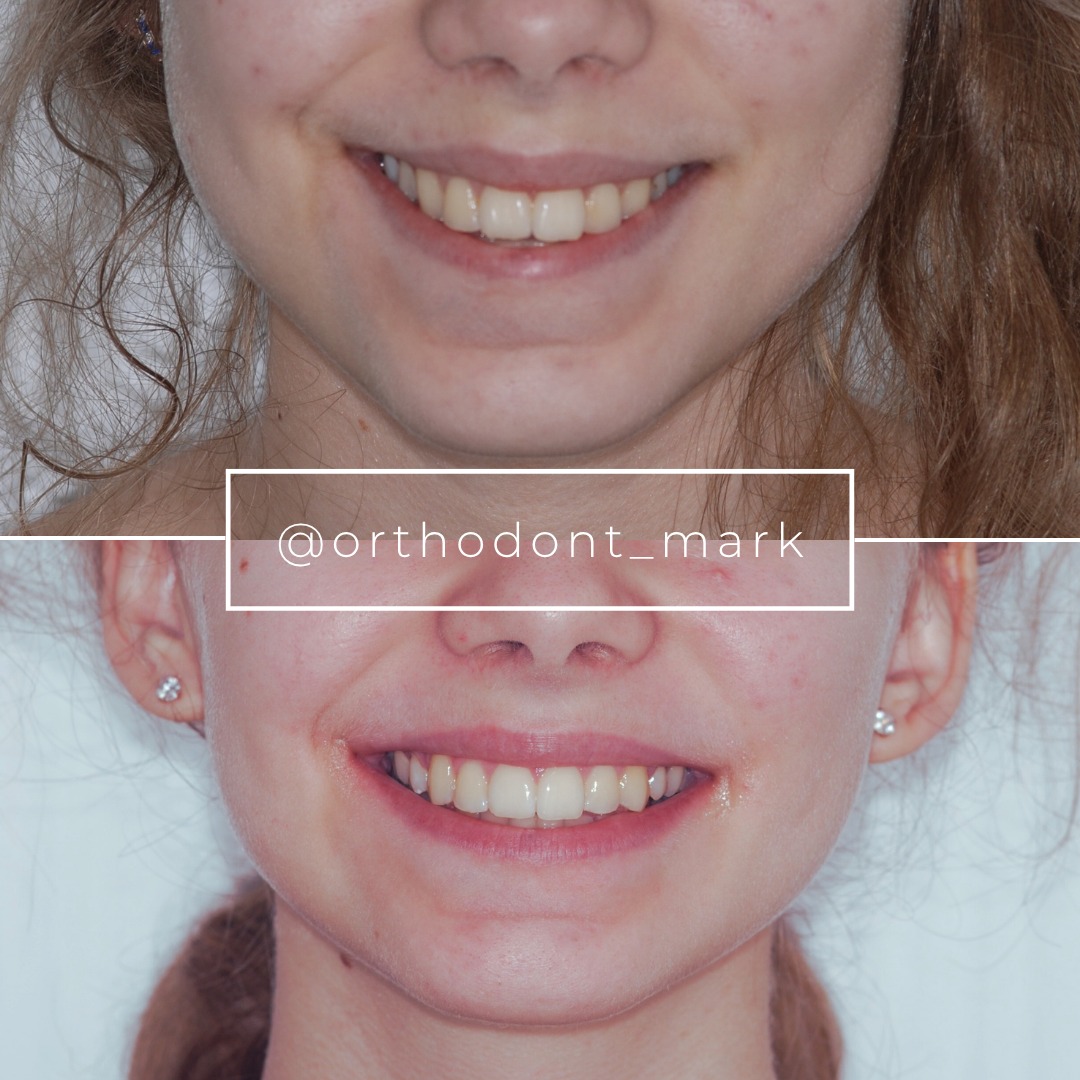
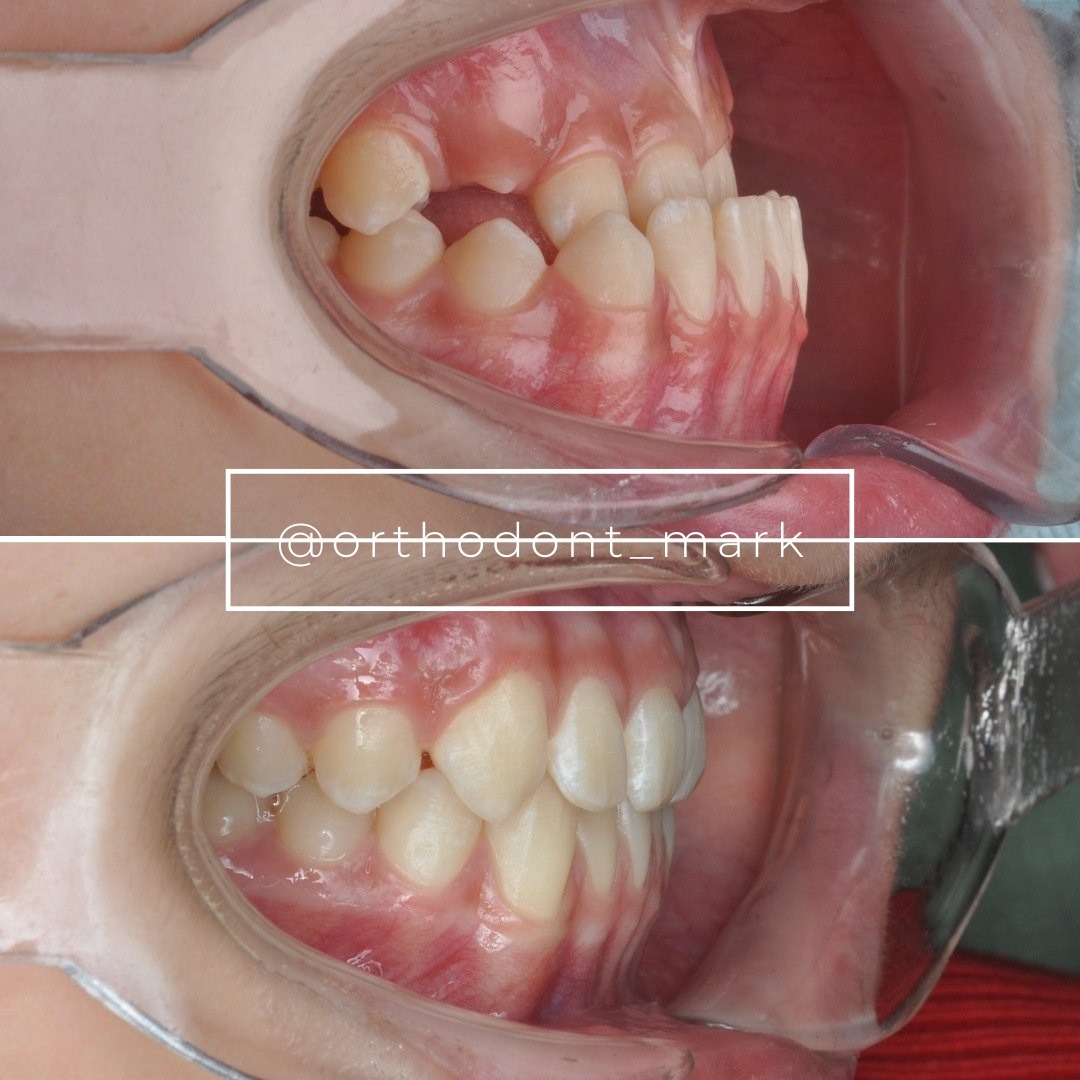
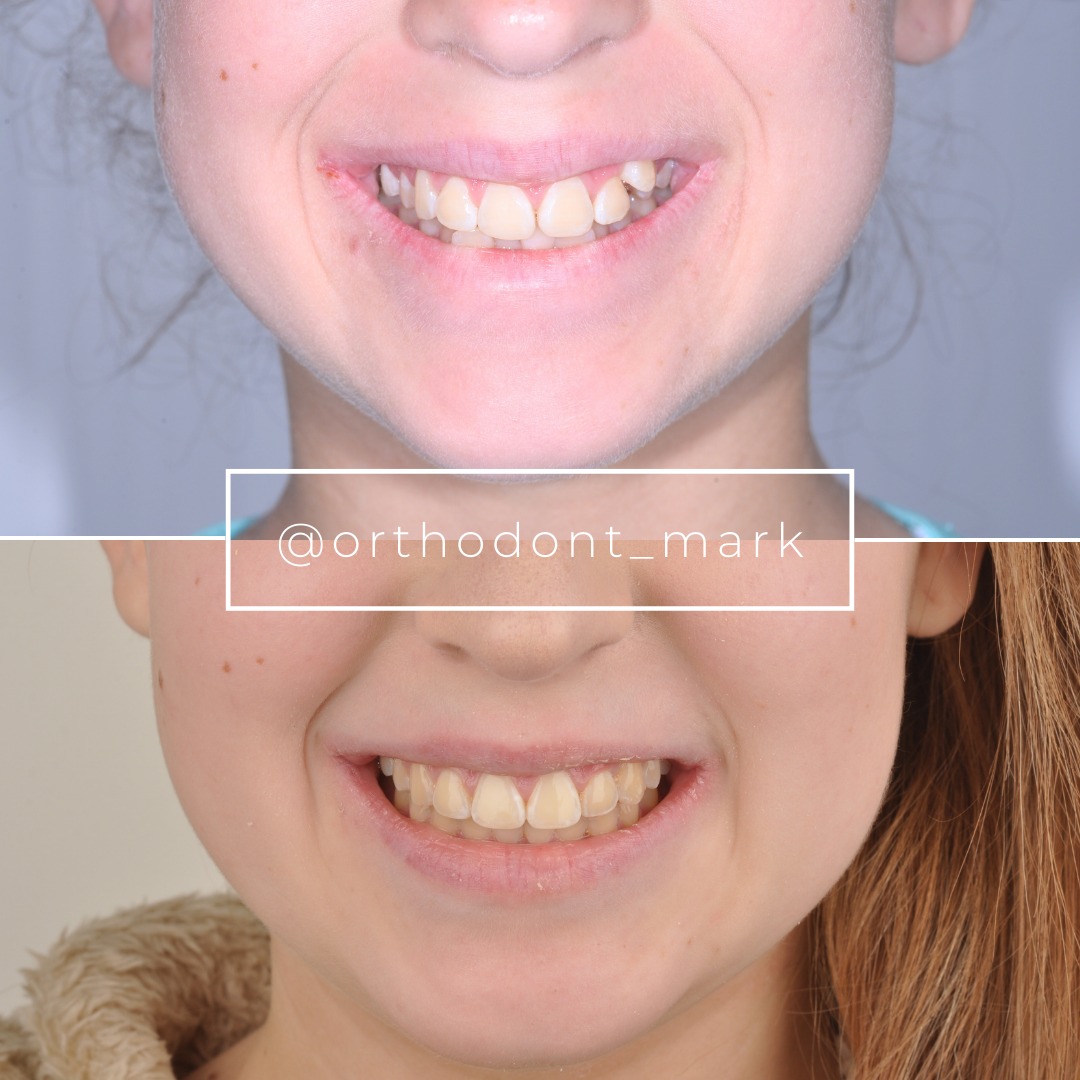
Learn the full MARPE protocol from Dr. Mark Radzhabov
Fundamental course covering CBCT patient selection, miniscrew planning, activation protocols, and 60+ clinical cases. Choose the access level that fits your practice.
Essentials of rapid palatal expansion for practicing orthodontists.
- Core RPE concepts and biomechanics
- 6 structured video lessons
- Clinical decision checklists
- Lifetime access to recordings
Deep-dive into MARPE protocol, diagnostics, and clinical execution.
- 6 modules covering MARPE from A to Z
- CBCT case selection walkthroughs
- Miniscrew placement and activation
- 60+ annotated clinical cases
- Direct Q&A with Dr. Mark Radzhabov
5-element medical consultation framework for dentists and orthodontists.
- Trust-building consultation protocol
- 5 lesson modules
- Templates for treatment plan delivery
- Works with any clinical specialty
Clinical FAQ
What is optical registration loss in intraoral scanning, and how do I recognize it during a scan?
Registration loss occurs when the scanner loses spatial tracking continuity. Signs include visible freezing or jumping in the real-time preview, gaps in the reconstructed arch, or explicit stitching-failure notifications. Stop immediately, dry the area, and rescan from a clear landmark tooth.
Why does my intraoral scanner keep failing in the posterior region, and is this a hardware defect?
Posterior scanning is harder due to limited visibility, gag reflex, and poor scanner angle positioning. This is normal geometry, not a defect. Use a 45° angle to the occlusal plane, reposition your head back, and perform a dedicated posterior rescan if point-cloud density is visibly low.
How often should I perform calibration checks on my intraoral scanner?
Perform calibration reference scans monthly or after any environmental change (temperature shifts, relocation). Compare file size and point-cloud density to previous baseline. If degradation is visible, contact the manufacturer for recalibration.
What is the correct procedure if my intraoral scanner STL file will not import into design software?
File corruption is likely. Check the scanner's temporary file cache for a backup point-cloud file and attempt re-export. If no backup exists, rescan the patient. For future prevention, export immediately after scanning and verify file size matches expected baseline (80–150 MB for full arch).
Can moisture on the scanner lens or tooth surfaces cause visible artifacts in the STL?
Yes. Water droplets on optics create black voids or pixelated regions. Wet tooth surfaces scatter light, producing noisy point clouds with poor interproximal definition. Wipe optics every 3–4 scans and use dry gauze to absorb saliva during scanning.
How long should I allow between scanning different quadrants to permit proper software registration?
Allow 2–3 seconds of pause between quadrants while the scanner processes point-cloud data. Do not continuously scan without pausing; this increases stitching artifacts. Resuming from a clearly visible landmark tooth also improves transition accuracy.
What backup strategy should I use to prevent loss of scanned data?
Export STL immediately after scanning, never batch-export at day's end. Create timestamped cloud backup (HIPAA-compliant Dropbox, OneDrive, or practice PACS) within 5 minutes. Local hard drives fail; redundancy is essential for workflow continuity.
Why does a complete-arch scan show excellent anterior anatomy but poor detail in the palatal vault?
Palatal vault has lower optical reflectance than tooth enamel, and scanner angle constraints limit direct overhead access. Perform a dedicated palatal-region rescan with modified patient positioning (head tilted back, mouth wide open) to ensure adequate detail for MARPE planning.
What is the difference between scanner precision and trueness, and why does it matter for orthodontic planning?
Precision is repeatability (can you get the same measurement twice?). Trueness is overall accuracy relative to a reference standard. Orthodontics requires both; calibration drift affects trueness silently, potentially causing 0.2–0.5 mm systematic errors in screw positioning or interproximal space calculations.
How can I tell if my intraoral scanner's calibration has drifted without formal manufacturer testing?
Rescan a previously scanned case and compare the new STL visually to the old file. If point-cloud density appears reduced, mesh quality is coarser, or posterior teeth show unexpected dimensional changes, calibration drift is likely. Contact the manufacturer for formal recalibration.
Scanner reliability directly impacts your practice's efficiency and case accuracy. By mastering these five failure modes, your team can reduce scan rework, maintain consistent file quality, and support the digital workflows that enable evidence-based treatment planning. If you encounter persistent scanner issues or need guidance on optimizing your intraoral scanning protocol, Dr. Mark Radzhabov offers clinical consultation and detailed training modules at ortodontmark.com to strengthen your digital diagnostic foundation.